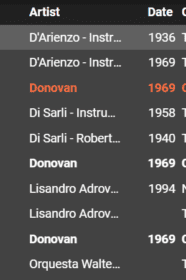
The Monitor plugin is back, rewritten for MediaMonkey 5.
When MediaMonkey 5 switched its plugin language from VisualBasic to JavaScript, the original Monitor plugin stopped working. The new version works the same way: it adds two items to MediaMonkey’s right-click menu that send one or more songs to an external music program for pre-listening (monitoring, cueing, previewing), so you can audition the next tanda in your headphones while the current one plays to the room.
Installation and Use
Click this link to download the Monitor Plugin for MediaMonkey 5. Double-click the monitor.mmip file (mmip = MediaMonkey Installation Package) to add the plugin to MediaMonkey, or use Tools > Addons > Add in MediaMonkey. Restart MediaMonkey if it asks.
Next, tell the plugin which program to use. Open Tools > Monitor settings… (or Tools > Addons, find Monitor, and click its settings button), click Browse… and select your monitor program. The plugin was designed for Foobar2000, a light-weight player that works well as an audio monitor. If you use Foobar2000, the command flags are already set for you.
[IMAGE: images/monitor-settings.png — alt: “Monitor plugin settings with the Foobar2000 path and command flags” — caption: “Point the plugin at your monitor program.”]
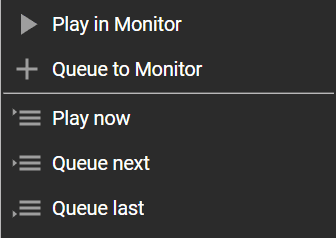
Now right-click one or more songs in any song list or in the Playing list. Two new items appear near the top of the menu: Play in Monitor and Queue to Monitor.
If you haven’t set up a monitor program yet, clicking either item offers to open the settings.
Usage Scenario
Set up your monitor program to play through a different sound card than MediaMonkey. Most external sound cards offer better sound quality and control than a laptop’s built-in sound, so let MediaMonkey play to the amp through the external card, and set your monitor program to use the laptop’s built-in sound output. Plug a set of earbuds into the laptop to pre-listen.
- Play in Monitor clears the current playlist in your monitor program, adds the selected songs, and starts playing the first one.
- Queue to Monitor adds the selected songs to the end of the monitor program’s playlist without interrupting what it’s playing. Use this to line up more songs while you’re already pre-listening.
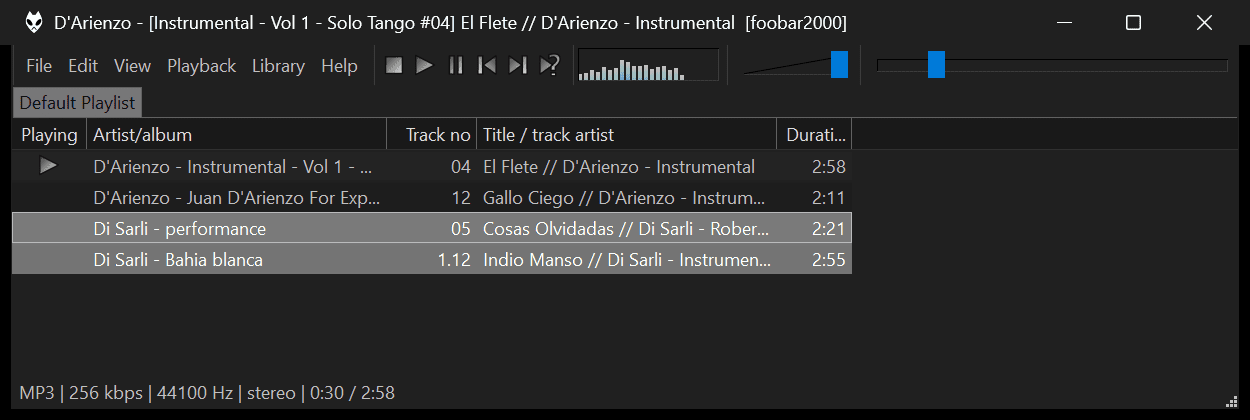
Once you’ve picked the songs and the order to play them in, go back to MediaMonkey and add them to your Playing list. With Foobar2000 you can drag the songs from its playlist straight into MediaMonkey’s Playing list; a marker shows the insertion point.
Tips
- You can change the monitor program and its command flags at any time in the settings. No need to reinstall.
- You can assign hotkeys to Play in Monitor and Queue to Monitor in Tools > Options > Hotkeys.
- Only songs stored on your computer are sent. Songs streamed from cloud services are skipped.
- Using a program other than Foobar2000? Look up its command line options for “play” and “add to playlist,” and enter them as the Play and Queue command flags.
- MediaMonkey 5 checks for new versions of the plugin automatically.
- Still on MediaMonkey 4? The original Monitor plugin still works there.